Monday, 29 April 2013

StudyBlue announces annual teacher appreciation program “Thank a Teacher a Latte.”


Mobile and social study platform, StudyBlue today announced the launch of its annual teacher appreciation program “Thank a Teacher a Latte.” As the largest digital library of peer-sourced study materials, StudyBlue is inviting students, parents and industry leaders nationwide to join in building a virtual Wall of Thanks to give back to the educators who have made a difference in their lives.

The 2013 Thank a Teacher a Latte program is open to everyone, including students, former students and parents. In addition, any teacher or school staff member may be recognized. With one click, a digital thank-you card is created and displayed as a keepsake. Once submitted, the esteemed educator will receive a digital “badge of honor” they can display with pride on Pinterest and other social media outlets. 300 lucky teachers will receive $5 coffee cards at the end of May when the contest subsides.

2012’s campaign saw thousands of submissions from cities and school districts across the country. Praise came from parents, students and a CEO or two “Educators are busy, and often don’t hear a simple “Thanks. With this platform we wanted to help students easily extend their gratitude to a teacher who is making, or has made, a difference in their educational goals,” said CEO Becky Splitt.

For more information on the program, to see all current Thank You Cards in real-time, visit http:/thankateacher.studyblue.com/ and www.studyblue.com.


Friday, 26 April 2013

Quick and easy way to add memory to your Chromebook


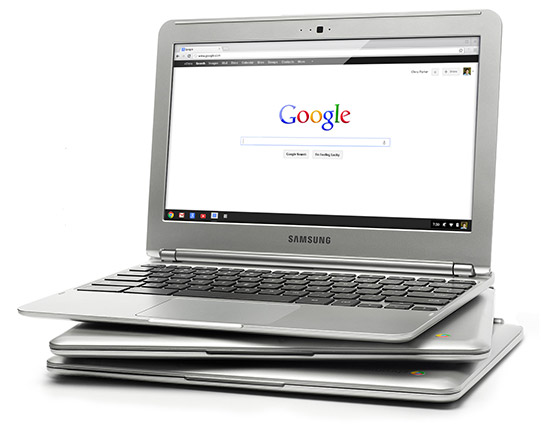
I've been using a Chromebook since getting a CR-48 from Google a few years ago, and I love it. I am currently using a Samsung Chromebook, and our district is deploying over 5000 of them.

The Chromebooks, and Chrome OS in general, are fast and work great, but every once in a while they can bog down when doing serious multitasking. Many only have 2GB of RAM and do not offer the ability to add more RAM physically. I found out about a great way to increase your memory by using zRam which uses swap space on your hard disk/SSD. Kevin C. Tofel shared this great resource that is very easy to do.

Here are the simple steps:

  1. Open up a terminal tab with the CTRL + ALT + T keys.
  2. Type “swap enable” (without the quotes).
  3. Restart your Chromebook.
It's that easy. I did it and my Chromebook runs much smoother and faster and rarely bogs down, even with 15+ tabs open. 

Disabling it is easy too. Do all of the steps but type "disable" instead of "enable".

Give it a try and see how it improves your Chromebook's performance. 


Related:


Google Keep, Google's Note Taking App, get's some improvements and new features.


Google’s Keep, Google's easy to use note taking app, has some new features, improved features and bug fixes. Here is the list of new features from the Google Play Store.

• Create notes, lists, and audio notes
• Add photos to any note
• Hide and show checkboxes to turn notes into checkable lists
• View and create notes from homescreen and lockscreen widgets (lockscreen widgets require Android 4.2+)
• Selectable color for notes
• Safely sync notes to Google Drive and other devices
• Notes can also be used from http://drive.google.com/keep


I use Evernote for most things, but also use Keep for quick notes on the go, along with voice notes, and then I can share the notes to other apps, or just access them as needed.


Thursday, 21 March 2013

Google Keep note taking service launched


Google Keep

Google has just launched Keep, a note taking service, that is free. It is a cool note taking system, that allows you to quickly jot down notes, checklists, transcribe a voice memo, search your notes, and more.

Your notes are saved in Google Drive and synced to all of your devices. There is an Android app for Android 4.0+ and you can access, edit and create new notes on the web at http://drive.google.com/keep and Google will be adding these functions directly in Google Drive shortly.

It has a nice layout, using boxes instead of text and you can rearrange the notes based on your needs and priorities and you can color code your notes.

Knowing that I am a huge user of Evernote, many people have asked me about Google Keep. I will be using both. Evernote has many more features that I use and I have over 4900 notes in Evernote. However, I find Evernote a little more cumbersome for quick note taking on my phone or tablet. So, I'm going to be using Keep for quick notes on the go, along with voice notes, and then I can share the notes to other apps, or just access them as needed. I don't feel like I have to choose one note taking app, but rather that I can use two or more based on my needs.

Here's a nice video overview of Google Keep:


Evernote Resources


Wednesday, 27 February 2013

iPad Apps 4 Schools - great site with info and resources for iPads in Education


iPad Apps for School


iPad Apps for School is another site from Richard Byrne, author of Free Technology for Teachers and Android 4 Schools. In this site, Richard and his guest authors will be sharing resources and reviews of apps (mostly free) that can be used in K-12 schools, along with ways that those apps can be used in the educational setting by teachers, students, and administrators.


If you use iPads as an educator, administrator, or student, or your school is looking at using them, you should check out this site.


Related:

Android SmartPhone and Apps that I use as an Educator

Android resources - information, news, resources, and more


Adobe Education Exchange educator community announces new features


EDEX-marquee-1

Adobe Education Exchange is an online community of educators who share resources, ideas, tips, and more. It launched at ISTE 2010 and now has over 75,000 educators sharing over 4,000 resources.

They just re-launched it with some new features which you can read about here: http://blogs.adobe.com/conversations/2013/02/announcing-the-all-new-adobe-education-exchange-education.html.

The new version includes simplified navigation, a new design, easier browsing of resources, increased social/community features, and API's so that it can integrate with other apps and platforms. 

It's a great, free resource.


TotSplash - organize and present ideas


TotSplash is a new site that combines online mind mapping and "Prezi-like" presentations.

Users can focus on organizing their thoughts and ideas and then the app transforms them into a "Prezi-like" presentation. You can share and embed your TotSplashes also.

There is a free version with no login required.

It's easy to use and could be a great alternative for students and teachers.