Showing posts with label Android. Show all posts

Friday, 12 September 2014

Google Announces Android Apps for Chromebooks - Very Nice!!


Yesterday, Google Announced the first 4 Android Apps that are available for Chromebooks. This is really nice.

What got me excited was that Evernote was one of the first 4. Evernote is my main work and home tool so this was pretty cool to hear. I installed it on my Chromebook (Acer C720) and loved it - looks and works like the Android app. And the best part: OFFLINE SYNC! That's right, you can sync notebooks offline (premium users - well worth the $45 a year) just like in Android. This has now made my Chromebook the perfect device. Offline Google Apps (Gmail and Docs) and now Offline Evernote. I have no need for a windows laptop, even when I'm out of range of WiFi or 4G. I love it!

And, Google said more and more are coming. This is a great thing that shows that Google just keeps advancing their stuff


Here is the official announcement:  

First set of Android apps coming to a Chromebook near you
Posted: Thursday, September 11, 2014

Chromebooks were designed to keep up with you on the go—they’re thin and light, have long battery lives, resume instantly, and are easy to use. Today, we're making Chromebooks even more mobile by bringing the first set of Android apps to Chrome OS:

Duolingo - a fun and free way to learn a new language before your next trip
Evernote - write, collect and find what matters to you, with a full-size keyboard and touchscreen
Sight Words - a delightful way for you to help improve your child's reading skills
Vine - create short, beautiful, looping videos in a simple and fun way

These first apps are the result of a project called the App Runtime for Chrome (Beta), which we announced earlier this summer at Google I/O. Over the coming months, we’ll be working with a select group of Android developers to add more of your favorite apps so you’ll have a more seamless experience across your Android phone and Chromebook.

In the meantime, please tell us which of your favorite Android apps you’d like to see on your Chromebook.

Posted by Ken Mixter, Software Engineer & Josh Woodward, Product Manager (Android Dreamers)


Thursday, 23 January 2014

My top Android Apps for Educators


I'm a huge Android user. I have my HTC One Smartphone and my own Nexus 7 tablet. In addition, my department uses Nexus 7 tablets for mobile access and some of our schools have Nexus 7 and Nexus 10 tablets.

I have a bunch of apps that I use on a regular basis, both when I was a teachers, as well as now as a CIO. This is my list of top apps for educators:


Gmail - email is the main way I communicate with my staff, vendors, and school admin and teachers. It is indispensable for me. I can easily check all of my email accounts (4).


Calendar - my calendar is so busy that I would be lost without this. What's nice is that my personal and work calendars are overlaid for easy viewing.


Drive - access and create/edit/share documents anywhere. You can even view and edit none Google Docs files using QuickOffice (see below) that Google bought and integrated into Drive.


Evernote -is my favorite, and most used resource. I had all of my lesson plans, resources, web clippings, lesson schedule, meeting notes, misc. notes, task lists, reference materials and much more on here as a teacher and I now use it for all of my notes, meeting notes, references, project planning and more . I can access my notes anywhere and can even share notes with others.


Google+ - this is how I connect with other educational, technology, and edtech professionals. Easy to use, great for conversations and tons of great people and communities on here.


Edmodo - this is a major component in our school district and used widely by teachers and staff. It provides some great features and resources and is free.


Student SIS System - access student information anytime. Teachers can also use it to take attendance and as a roll book during a fire drill.


Splashtop - I use this to access my desktop and/or laptop at any time from anywhere. It allows me to do anything on my Android device, including running Windows apps and accessing all of my files.


QuickOffice - access, view, and edit Word, PowerPoint and Excel files.Free version comes with phone and can view documents. Pro version adds editing for a fee.

Another feature of Android I love is the sharing. I can share from app to app with one click. Great for sharing resources with others.


Related:

Android for Education Resources

My Favorite Resources for Teachers and Students

Google for Education Resources

Essential Apps and Installs for Windows, Chrome, Android

Why I use Google's Products as an Educator


Friday, 21 December 2012

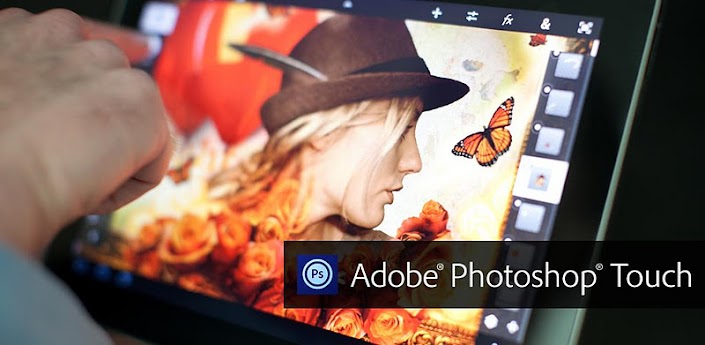
Adobe Photoshop Touch Updated for 7 Inch Devices


Adobe® Photoshop® Touch

Adobe Photoshop Touch is a great app for tablets and smartphones that I wrote about before. It has just been updated for 7 inch devices like the Nexus 7, Kindle Fire and iPad mini.

This is a great app for students and educators to use for photo editing and effects and now it is available for the smaller tablets. I happen to love my Nexus 7 and the 7 inch table size, so I'm very happy. The app is $9.99.


Take a look at more information about Adobe Photoshop Touch.


Tuesday, 16 October 2012

Any.do popular to-do app adds 12 new languages - still free


Any.do is a very popular, free, to-do list app for Android, iOS and Chrome. It has now added 12 new languages and is available in English, French, German, Italian, Japanese, Korean, Dutch, Swedish, Spanish, German, Portuguese, Chinese (simplified & traditional) & Russian. 

This makes this highly popular task app even better.


What's nice about Any.do is that your task list is synced across all of the versions, from the Chrome app to the Android and iOS versions so you can access your task list from any device.

This is a great app for students, teachers and administrators to use to keep organized.


Related:
10 Great, Free Apps for Students for Notetaking and Class Planning

Monday, 1 October 2012

Google Nexus 7 initial impressions and review


Galaxy Nexus

I just got a Google Nexus 7 tablet yesterday as a gift from my wife for our 10th wedding anniversary which was Saturday (she's so cool, isn't she?) and absolutely love it. Here's my initial thoughts, impressions, and review.

I have an Android smartphone (HTC Droid Incredible 2) that has a 4 inch screen. I also have an HP TouchPad tablet (running webOS and Android through CyanogenMod) with a 10 inch screen. The Nexus 7 has a 7 inch screen. I love the 7 inch display. It's nice and big for better viewing, more stuff on the screen at one time, but it's small enough to hold in one hand. I can even do some great typing with it for notes on Evernote.

Galaxy Nexus Tablet
As I turned it on, it asked for my Google account info (email address and account password) and then asked if I wanted to restore it from my account, which I did. It immediately started downloading the apps that I have on my smartphone and even updated them automatically to the version for the Nexus 7. This was a big time saver since I didn't have to manually install any apps.

Once that was done I started to organize my screens and start using it. It's a dream to use. Lightning fast, easy to navigate and customize. You can customize the apps on the launcher page and menu, add widgets and more.

I love the stock Android experience too. It is running Jelly Bean, and actually had an update as soon as I turned it on. There are some great features in Jelly Bean that I'm starting to learn about and the Nexus devices get the updates first. The notifications are great (similar to webOS, which is no surprise since the same guy designed them both) and so is the multitasking. I'm just starting to use Google Now, which is very cool.

The build quality is excellent and the texture of the back of it makes it easy to hold. I can easily hold it in one hand and use the other hand to navigate apps and enter data.

The display is beautiful and the apps render very quickly. Having Chrome as the browser is also a great feature and allows you to have the full desktop Chrome experience on a tablet. You can even sync your open tabs and bookmarks across your devices

So far, I have been using it for my normal daily routine: Feed Reader, Twitter, Evernote, iHeartRadio, Google Music, Netflix, Facebook, and the like.

I think the 7 inch format is perfect for media consumption, and I've actually been able to do a lot of creation with it, especially with Evernote and Google Docs. Typing on the screen is easy to do. It's big enough to easily see the screen, but small enough to be very portable. I am using it as my primary meeting/conference/travel device because it has been so easy to use Evernote and Docs on it for notes and creating content.

I purchased the 16GB model. After all of my apps and offline data for Evernote, Drive, and Music installed, I still have over 12GB left. 16GB is not a lot if you want to carry a lot of offline movies or games, but for my needs its perfect. It was $249 for the 16GB model, and I got $25 towards the Google Play store to get apps, music, or movies. I purchased QuickOffice Pro and a bunch of music and still have some left over. It comes with the tablet and a USB cable and wall charger. I've ordered the case from Google and should have it soon.
Weather


The only downside for some will be the limit of 16GB of online storage and the fact that there is no rear facing camera. For me, it's not an issue because I use a lot of online resources, like Google Drive and Dropbox and Sugarsync, and I probably wouldn't take too many pictures with a tablet. I can take pictures with my smartphone and within seconds they are synced to my Sugarsync account and available anywhere.


If you want a tablet, take a good look at the Nexus 7. It's easy to use, inexpensive for a tablet, easy to use, the 7 inch size is perfect for carrying, consumption, and some creation.

I am even more convinced that a better alternative to schools buying an iPad, is to buy a Chromebook and a Nexus 7 for the same price.

I did not receive any compensation or favors for this review. I just like my device. 

Related:

Nexus 7 web site - specs, gallery, features and more

Android for Education Resources

Evernote for Education Resources

Google for Education Resources


Friday, 28 September 2012

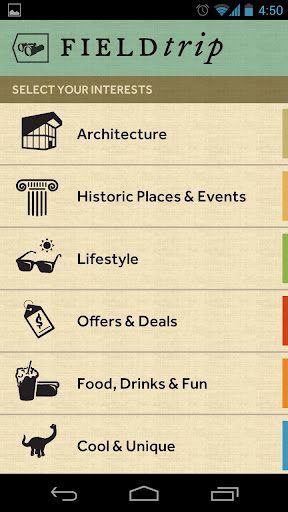
Google Field Trip - app that finds info about where you are


Field Trip

Google has a cool new app for Android, called "Field Trip". It helps you find things about what's around you. It runs in the background and when you get close to something interesting, it pops up with details about that location. You can use it to learn more about historical locations, buildings, stores and restaurants and more. It takes information from a variety of sources, along with your location data, to produce these results.


This would be a great app to use with students, as they could explore their own school and neighborhood for interesting locations. It would also be great on real field trips to find out more information about where they are. You never know what they, and you, might find that's interesting or cool.

It's free on Google Play. Go get it and explore your world.


Related:

Android Resources for Education 


Google Play Store vs Apple App Store - my experience


I am an Android fan and user. However, I have a loaner iPad for testing and reviewing apps. I also have a webOS tablet. I've used the app stores for all of them, and Apple's is the worst in terms of customer experience.

1. Google's Play Store and Palm/HP apps were easier to search and easier to install (no need for iTunes!). I could even browse the sites and select the app to be downloaded to any of my devices remotely.

2. iTunes. It is still sad that I had to download something to search and install an app on a different device. Searching isn't great either.

3. Redeeming a gift card/code. In both Google and webOS, you just click "buy" for an app and then it asked you for a code. With Apple, you have to redeem the code first, and then wait for the balance to show up in your account, and then go buy the app.

4. Reversing a mistaken install. Apple - once you buy it, it's a nightmare to get a refund if you mistakenly bought it. Google - one click and it's done. This gives you a chance to make a mistake or realize it's not the app you were looking for.

5. The app information is also better, in my opinion, on Google Play. More info as to it's permissions, features, updates, screen shots, and more. Plus, I love the related apps search and results on Google better than iTunes.

Maybe it's just me, but you would think a company like Apple that prides itself on customer experience would provide a better app store experience.


Thursday, 20 September 2012

CamScanner - great app to scan paper docs using smartphone camera


CamCard

CamScanner is a great app that I use quite often. The app is available for iOS and Android and the free version is very useful. The paid version, $4.99 on both platforms, adds some useful features, like uploading directly to Evernote. You get a 7 day trial of the paid version free, and can get an additional 60 day trial by sharing it on social networks.

The app allows you to take a picture of a paper document, crop/clear background/improve quality, and then save it as a PDF file. Take a picture of important documents, meeting agendas, whiteboards, and more and save them as PDF files for future reference and use. You can add tags to the files too, and search text in the scanned picture. You can then share the file to cloud services like Dropbox, Google DocsEvernote, and more.


This app turns your smartphone into a scanner and document processor. Give it a try.

Google Play Store

Apple App Store


Google Translate Android App has ability to translate words in a picture


Google Translate

Google Translate is a great app for translating written words and even supports translating spoken words (and it will speak it in the other language). This is a great resource for teachers and ESL/ELL learners. And, it's free.


There was a recent update to the Android app for Google Translate that makes it even more useful. You can now translate text in images using the smartphone's camera. Open Google Translate app, click the camera icon to take a picture, and then highlight what you want translated, and viola, translated. This is very useful for ESL/ELL students, as well as travelers. Some other updates include the ability to specify preferred dialects for speech input, instant, as-you-type translation similar to the Google Translate web interface, and improvements to the way Japanese characters are handled


Tuesday, 18 September 2012

Celly Launches New Service and Android App for Building Mobile Social Networks


Celly is a free service that offers group text messaging and polling. You can have open group chats, one-way alerts or even moderated chats. It is set up as a "cell" with a unique name so that you can invite the people you want to join. It is free to use (standard text messaging rates apply though) and anyone with a mobile phone or access to the web can use it. There is a full web console to control and monitor things and you can either create a Celly login or login with Facebook or Twitter.

It is secure and private, there are no limits to the number of people on a cell, and you can use it for polls.

There are also many more features such as media links, notes and more.

Celly is a great way for schools and teachers to communicate with each other, parents and students.


Today, Celly is announcing a new service. The new service allows users to build instant mobile social networks, called "cells" using text messages, QR Codes, email, web or the new Android App. Anybody with a mobile phone can join a cell in seconds and instantly share secure group messages, polls, reminders, notes, and topic alerts. This means that students and teachers can easily and quickly create their own networks for classes, projects, discussions and more. These cells could also be used at professional development and conferences for back channeling and discussions.


The Full Press Release is Below. Check it out.


Celly Launches New Service and Android App for Building MobileSocial Networks

Celly Powers Over 20,000 Mobile Social Networking “Cells” in Schools, Homes, Communities, Local Governments, Businesses, and The Occupy Movement Via Text, Web, Email, and Now Android App

Portland, OR – September 18, 2012 – Celly today announced availability of its service for building mobile social networks. The new service enables real world groups to instantly self-organize into mobile social networks, called “cells”, using text messaging, QR code, email, or web. The speed, simplicity, and flexibility of the Celly platform has led to the creation of more than 20,000 cells across all 50 states for friends, families, schools, communities, local governments, businesses, and the Occupy Movement. The company also announced today availability of the Celly Android App for free download on Google Play.

“We collaborated directly with educators, students, parents, city leaders, community associations, and political movements to develop Celly – and we learned why social networks like Facebook, Twitter, and Google+ don’t work for spontaneous sharing in real world scenarios,” said Russell Okamoto, co-founder and CEO of Celly. “Celly overcomes lack of privacy, on-boarding friction, oversharing threats, and expensive device requirements that are showstoppers with existing social networks.”

Celly streamlines the social networking process through the power, ubiquity, and convenience of mobile phones. Anybody with a mobile phone can join a cell in seconds and instantly share secure group messages, polls, reminders, notes, and topic alerts.

With the relentless barrage of emails, websites, Facebook, Twitter, Tumblr, and Google+ notifications we all receive on a daily basis, a simple, short, and concise text message cuts through all the noise of our digital lifestyles,” said Shawn Carrié, member of the Occupy Wall Street’s Tech Ops Working Group. “What I love so much about Celly is that anyone can set up a cell in literally a minute, anytime, anyplace, easily tell people how to get on it, they sign up in ten seconds, and it's done you're linked. It's a beautifully simple, lightweight system that works intuitively and effectively.”

Cells are “social building blocks” that work for any group, event, place, or activity. Cells can operate stand-alone or be linked together into networks to match the size and shape of any organization. “Our goal is to build the smallest communication tool that can have the biggest impact on the most scenarios in the shortest amount of time,” said Greg Passmore, co-founder and CTO of Celly.

Celly supports the private, mobile social networking needs of a wide range of users and applications:

       Families – everyday communication and scheduling for family members, connecting with relatives, weddings, reunions
       Friends – cliques and social chat
       K-12 and universities– in-class feedback and polling, homework reminders, school alerts, study groups, parent communication, field trips
       Local governments – departmental communication, cross-bureau workflow, community outreach
       Neighborhoods– watch groups, foot patrols, lost and found, community sales, event planning
       Faith-based organizations – prayer groups, helplines, event fundraising
       Teams, clubs, choirs – game and practice alerts, ridesharing and travel planning
       Businesses – staff coordination, field service communication, real-time coupons, customer loyalty campaigns
       Political movements – 100+ Occupy Movement sites, election campaigns and fundraising

“Celly is changing the face of education! While Twitter, Google+, and other social media websites are blocked at my school, I can freely use Celly to communicate with my students and their parents in a safe and supportive environment,” said Melissa Seideman, history teacher at Haldane High School in Cold Spring, New York. “I use Celly to send text messages to students with reminders, announcements, polls, and questions. Students can text me a specific question such as ‘what is on the test tomorrow?’ or ‘what did I miss in class?’ if they were out sick. With Celly, cell phones have the potential to bridge the gap between the home, school, and social media world.”

Celly’s features can be accessed, managed, and fully synchronized using text, web, email, and now an Android app available for download on Google Play. Feature advantages include:

       Privacy and Sharing Controls – Celly users communicate freely without identifying individual phone numbers. Group communications can be moderated by one or more “curators” for relevancy, abuse, and redundancy.

       Ubiquitous Access – On-boarding is instant, simple, and works from any device, addressing the “digital divide” between those with a smartphone or tablet and those who just have an SMS-enabled mobile phone.

       Unlimited, Opt-In Membership – Cells have no limit on membership. Plus, all members choose to opt-in, or out, of each mobile social network.

       Real-time Discovery – Cells can track RSS feeds and other social networks for topics of interest. When a cell discovers a search hit, matching messages are automatically imported by the cell and members are instantly notified.

       Multi-Cell Networks – Multiple cells can link together forming complex networks for collaboration where messages with specific hashtags route from one cell to another.

“The use of Celly enables street gang outreach workers managed through our office to virtually be two places at once,” said Tom Peavey, policy manager of the Office of Youth Violence Prevention, City of Portland. “We use Celly to connect available public safety resources from the City and county with private non-profit service organizations and community groups across the City, dramatically speeding up the ability to inform as well as apply needed service. The use of Celly is an essential messaging component to intervention and prevention efforts provided through our office.”

“Celly helps us provide the public with immediate, real-time construction and accident updates so our commuters can make informed driving decisions,” said Andy Rittler, corporate affairs director, LBJ Express Project. “When it comes to accident response times, our crews are often first on the scene, thanks to the integration of Dallas Fire and Rescue’s Twitter feed directly into our Celly mobile network. We also like having the ability to pre-schedule outbound messages and are potentially adding mobile coupons to help drive traffic to local businesses near construction areas. We are constantly finding new ways to leverage the versatility of Celly as a mobile social network and communications tool.” 

Founded by former cloud computing architects from VMware, Celly is partnered with Portland’s Upstart Labs Accelerator Program and was recently recognized in the American Association of School Librarians (AASL) 2012 Top25 BestWebsitesforTeachingandLearning.

Pricing and Availability
Celly is available today as a free service via SMS, the Celly website, or the new Android App available on Google Play.  iPhone App, Developer API, and premium plans for organizations and advanced users are coming soon.

About Celly
Celly instantly connects people and topics in everyday life using the power, ubiquity, and convenience of mobile phones. From a text message, Android App, the web, QR code or email, individuals and organizations can spontaneously create private, mobile social networks to communicate, collaborate, and share information using group messages, polls, reminders, voice alerts, notes and real-time feed tracking. The free Celly service powers over 20,000 “cells” in schools, homes, local governments, community groups and neighborhood associations, event planners, teams and clubs, businesses, and the national and local Occupy Movements. Get started with Celly at cel.ly, or follow us on Twitter, Facebook and our blog.


Tuesday, 11 September 2012

My Favorite and Most Used Tech, Apps and Extensions


Every year people ask me what my favorite tech tools, apps, and other resources are and what I use on a daily basis. Every year, this changes a little bit. I just had someone ask me for a list of what I use the most and what my favorite Ed Tech resources are, so here you go. There are also some other great resources in the "Related" links at the end of the article.


Evernote - Evernote, an electronic notebook with lots of great features, is my main tool. I have lesson plans, lesson notes, lesson resources, research, travel info, recipes, lesson schedule, meeting notes, attached files, clippings from web sites, to do lists, personal references, tech resources and instructions and so much more. It is the main app I use for almost everything. This year I am using Evernote with my students.



Dropbox - Dropbox is a great file sync, backup, and sharing service that you can use for free. The rest of the files I need to use that are not in Evernote or Google Drive are setup in my Dropbox so that they are synced on my home and school computers and my smartphone. I can access my files from any web browser also. I never have to worry about losing a flash drive or forgetting to copy or email myself a file.


Google - I know this is kind of vague because Google has so many services, but I use a lot of them. Blogger for this blog and my class blogs, Sites for my class website, Gmail, Google+Calendar, Google Drive and Docs, search and so much more. Here's more on Why I use Google Products as an Educator.

Here are lots of great Google for Education resources and tips.


Google Chrome is my browser of choice. It's fast, secure, easy to use, has great extensions and bookmarklets, and just works great. I have it automatically open up my most used tabs: Gmail, Google Calendar, PowerTeacher, Blogger, Tweetdeck, Edmodo and Evernote. I also have bookmarklets for saving pages into my Google Bookmarks, accessing school systems, and much more.

Extensions:
Evernote Clipper - clip web pages and articles into my Evernote notebooks for reference or sharing with students. 

Goo.gl URL Shortener - shorten web page URL's for better sharing and tracking of sharing.

Webpage Screenshot - take screenshots of web pages, edit and format them, and save them.

Evernote Clearly - clean up a web page for easier reading and clipping.

Shorcuts for Google - one click link to all of Google's different apps and services. 

Aviary's clipping extension for Chrome to clip graphics from the internet and edit or modify them for both my edtech blog and lesson plans and resources.


I use Tweetdeck in Chrome browser to access my PLN on Twitter. It is easy to use and has great features like multiple columns and scheduling of tweets.


Edmodo is a free, learning management system that is full featured and easy to use. I'm using it for the first time this year with my students to share resources, have online discussions, post assignments, and offer online help. Here's more about my adventure with Edmodo


PowerTeacher

PowerSchool and Power Teacher - our district uses PowerSchool for attendance, gradebook, and other student information. Students and parents can access it and see their grades and attendance any time they want. It is accessable from any web enabled computer and you can generate multiple reports and export the data if needed.


Discovery Education Resources - these resources allow teachers to find lesson resources and even create lesson resources and provide engaging materials to use with students. I also use the Streaming Plus multimedia resource and the Science Techbook.


Android Smartphone - with my Android Smartphone, I can access all of my materials and resources, all of the apps and resources listed above and even control my computer with SplasthTop Remote. Android works great with all of the Google resources I use, and the Evernote app for it is awesome. 


Hardware - I have a teacher station computer in my classroom, along with 8 student desktop computers. I have a networked printer and a multi-function color inkjet printer. I also have an LCD projector connected to my computer, and a VCR and DVD player connected to the projector. I also use a Keyspan remote to wirelessly control my computer from anywhere in the room. Auxillary speakers are also a must. I also now use SplashTop Remote on my smartphone or HP TouchPad to control and access my computer from anywhere in the room.


Student Resources - students use the computers and their smartphones to access the internet for research, do virtual labs and investigations on PhET (great resource for math and science), get help on my site, get help on PhysicsClassroom, access software and services to explore and create and do their work using Blogger, Sites, Glogster, Google Docs, Evernote and Edmodo and more.


What are your favorite resources and apps? What do you use on a daily basis?


Monday, 10 September 2012

Google Drive gets updates for Android and iOS (including create and edit docs)


Google Drive is Google's free online file storage system and where Google Docs reside. It's web based, has Mac and Windows apps and mobile apps for iOS and Android. I love it. I have Google Docs on there, but also have other files uploaded there for easy access and use anywhere.
Access everywhere

Google Drive for Android has let you view, create and edit Google Docs for a while. iOS users now have reason to rejoice, as you can now edit and create new Google Documents on your iPhone or iPad. You can also view Google Presentations on your iOS device as well as create new folders and move files into folders and upload files right in the app. This is great news for iOS users.


The Android app also got an update. It has had edit, create and view for Docs for a while, but now lets you add comments, reply to comments and view tables in Docs, as well as view Presentations and organize folders and upload files.

Source: Official Google Blog
Android App: Google Drive in the Play Store
iOS App: Google Drive in the App Store

Here's a video from Google about Google Drive for Mobile.